Live Video Streaming of Security Robots
In one of my early posts, Droid Vision on an RC Truck, I showed how to set up a streaming server on a mobile robot using GStreamer and visualize the robot’s surroundings from my mobile device. This works well if I’m using the robot at home to record videos of pets and flowers. Both the phone and the robot are on the same network, allowing the phone to access the robot’s IP address directly.
However, to use the robot as a security camera, I am away from home, and the robot’s IP address is not visible from the phone. How can I monitor my home in real-time while I am away? Exposing the robot’s IP address poses a significant security risk and is not an option.
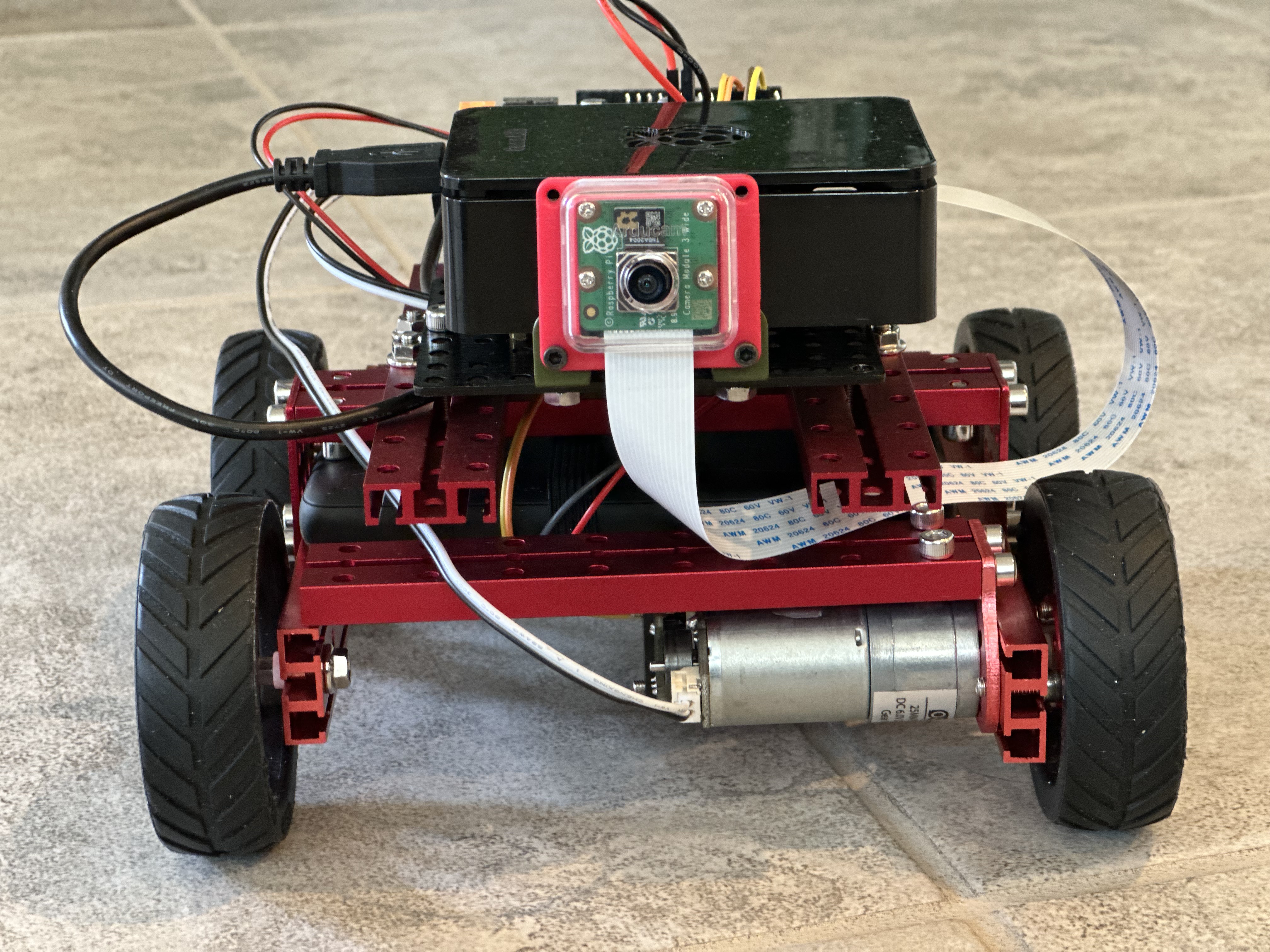
Relay the Video using a Public Media Server
The solution is to use a public server to relay the video: the video stream from the robot is sent to a cloud server, which then re-publishes the stream to the mobile device. This way, the robot can stay within the private network with all the safety and security, while its video is accessible from a public media server protected by credentials and a firewall.
All video data sent to the server is in memory and passes through. Nothing is stored unless recording is requested.

MediaMTX Media Server
A standard relay option is using an RTMP media server. RTMP is a protocol designed for streaming audio, video, and data over the internet, especially with low latency. It allows live video and audio from a source (such as a camera) to be sent to a platform (like YouTube Live or Twitch) for viewers to watch in real-time.
The RTMP media server I use is MediaMTX, an open-source solution that supports live streaming via RTSP, HLS, and WebRTC. Therefore, the Droid Vision app can continue using RTSP, and I just need to change the RTSP URL to the public media server: rtsp://PUBLIC_CLOUD_SERVER:8554/live/stream.
MediaMTX is easy to run. I can run it as a Docker container or download and run its binaries. The binary download page is on GitHub.
Here’s the output from MediaMTX. I used the MediaMTX Docker container. When the robot publishes the video to the MediaMTX server, message “[conn
% docker run --rm -it --network=host bluenviron/mediamtx:latest

025/07/07 21:02:36 INF MediaMTX v1.13.0
2025/07/07 21:02:36 INF configuration loaded from /mediamtx.yml
2025/07/07 21:02:36 INF [RTSP] listener opened on :8554 (TCP), :8000 (UDP/RTP), :8001 (UDP/RTCP)
2025/07/07 21:02:36 INF [RTMP] listener opened on :1935
2025/07/07 21:02:36 INF [HLS] listener opened on :8888
2025/07/07 21:02:36 INF [WebRTC] listener opened on :8889 (HTTP), :8189 (ICE/UDP)
2025/07/07 21:02:36 INF [SRT] listener opened on :8890 (UDP)
2025/07/07 21:03:01 INF [RTMP] [conn <robot ip>:34668] opened
2025/07/07 21:03:03 INF [RTMP] [conn <robot ip>:34668] is publishing to path 'live/stream', 1 track (H264)
2025/07/07 21:03:10 INF [RTSP] [conn <mobile device ip>:62634] opened
2025/07/07 21:03:10 INF [RTSP] [session c7b3d9d8] created by <mobile device ip>:62634
2025/07/07 21:03:11 INF [RTSP] [session c7b3d9d8] is reading from path 'live/stream', with UDP, 1 track (H264)
Video Stream pushes to the Media Server
Here is the GStreamer pipeline for the robot to publish the video stream to the media server. Please replace PUBLIC_CLOUD_SERVER with your server’s IP address in the cloud.
gst-launch-1.0 libcamerasrc ! \
  video/x-raw,format=YUY2,width=640,height=480,framerate=30/1 ! \
  videoconvert ! \
  queue ! \
  x264enc tune=zerolatency speed-preset=ultrafast bitrate=1500 ! \
  queue ! \
  flvmux streamable=true name=mux ! \
  queue ! \
  rtmpsink location="rtmp://PUBLIC_CLOUD_SERVER/live/stream"
Here is the corresponding Python code “push_rtmp.py” for the robot. Either method can publish the video stream to the RTMP server.
import gi

gi.require_version('Gst', '1.0')
from gi.repository import Gst, GLib

class RTMPPush:
    def __init__(self):
        Gst.init(None)

        self.rtmp_url = "rtmp://PUBLIC_CLOUD_SERVER/live/stream"

        self.pipeline = Gst.parse_launch(
            f"""
            libcamerasrc !
            video/x-raw,format=YUY2,width=640,height=480,key-int-max=30,framerate=30/1 !
            videoconvert !
            queue !
            x264enc tune=zerolatency speed-preset=ultrafast bitrate=1500 !
            queue !
            flvmux streamable=true name=mux !
            queue !
            rtmpsink location={self.rtmp_url}
            """
        )
    def run(self):
        self.pipeline.set_state(Gst.State.PLAYING)
        loop = GLib.MainLoop()
        loop.run()

if __name__ == "__main__":
    pusher = RTMPPush()
    pusher.run()
RTMP is very efficient, and MediaMTX is just a relay. Additionally, the receiving pipeline on the Droid Vision app uses UDP, which is extremely fast. So, there’s no noticeable delay when using the MediaMTX server to route the video stream.
Video Stream fetched for the Droid Vision app
As mentioned earlier, we will continue to use RTSP to stream video to the mobile app. Therefore, the Droid Vision app only needs a URL update. The new URL is now: rtsp://PUBLIC_CLOUD_SERVER:8554/live/stream.
Protect MediaMTX with credentials
By default, MediaMTX has no authentication — anyone who knows its RTSP/RTMP/HLS URL can push or pull. So it’s essential to protect it, especially when it runs in the public cloud.
MediaMTX has built-in user/password auth for:
- Publishers
- Readers/viewers
I configured users and passwords in the mediamtx.yml file. The credential applies to all paths.
# mediamtx.yml
paths:
  all_others:
    # protect push
    publishUser: mypublisher
    publishPass: secret123

    # protect pull
    readUser: myviewer
    readPass: view456
To run the docker container with the updated yaml file, I mount the local “mediamtx.yml” into the container:
% docker run --rm -it --network=host \
    -v /path/to/local/config/mediamtx.yml:/mediamtx.yml \
    bluenviron/mediamtx:latest
When publishing or reading the stream, I include the credentials in the URL. For example, on the robot, I change the rtmp_url of the RTMPPush class to:
MEDIA_SERVER = os.getenv("MEDIA_SERVER")
MEDIA_PUBLISH_USER = os.getenv("MEDIA_PUBLISH_USER")
MEDIA_PUBLISH_PASS = os.getenv("MEDIA_PUBLISH_PASS")

self.rtmp_url = f"rtmp://{MEDIA_SERVER}/live/stream?user={MEDIA_PUBLISH_USER}&pass={MEDIA_PUBLISH_PASS}"
The Droid Vision app has been updated so users can configure the “Use Media Server” option with the media server’s username and password as separate fields. The app automatically inserts these credentials into the URL.
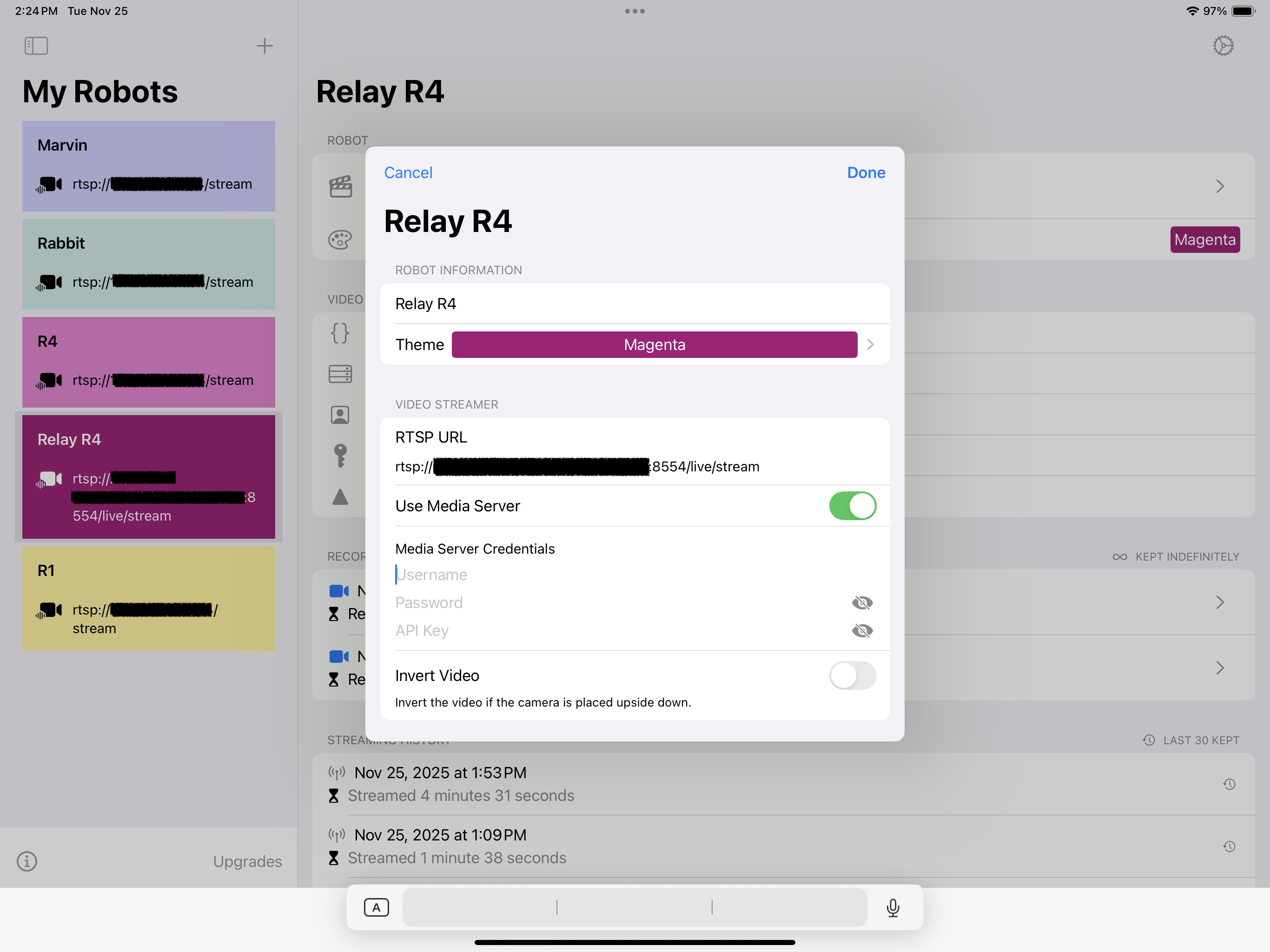
This method of protection is straightforward but not ideal for large-scale or highly secure applications because it uses hardcoded credentials. Therefore, MediaMTX offers alternative methods that utilize external authentication. For more information, please see the MediaMTX product site.
On-Demand Video Streaming
With a security camera, another critical feature is on-demand video streaming. Instead of streaming video continuously, the robot streams only when it detects something or when the user requests.
Media Control Server (Polling)
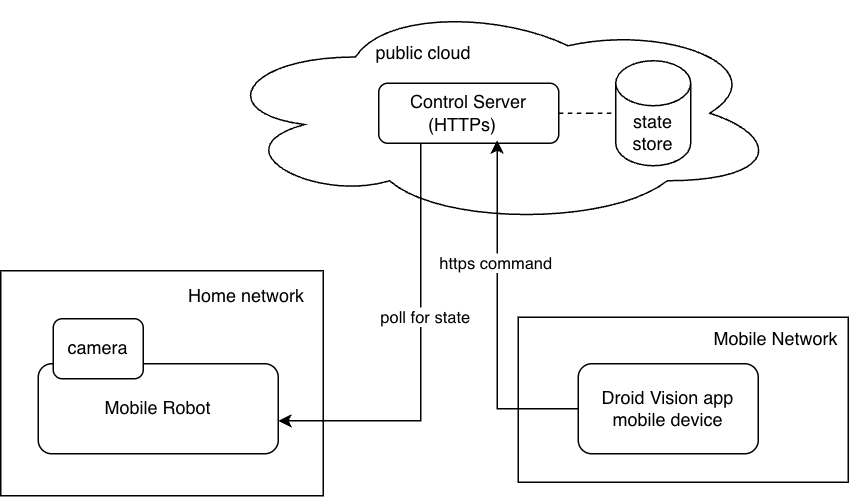
A quick solution is for the robot to run a small control client that periodically polls the cloud server for the streaming state, as requested by the mobile app.
MQTT Broker (Messaging)
The second approach involves using Message Queuing Telemetry Transport (MQTT) for push notifications: set up a public cloud MQTT broker. The robot subscribes to a specific MQTT topic, while the mobile app publishes start or stop messages to that topic.
Compared to the previous solution, this method eliminates polling, allowing the robot to react instantly. It also scales well to many cameras. MQTT is widely used for smart cameras, doorbells, drones, and other devices, which is why I chose this approach for my security robot.
Media Bridge Server
To use messaging in the mobile app, I need to make some deployment adjustments: instead of sending start/stop commands directly from the mobile app, which would require embedding the MQTT Swift client library, I use a cloud-based bridge server. The bridge server is an HTTP server that posts start/stop messages to the MQTT broker.
This setup keeps the Droid Vision app simple - it can use HTTP requests to start and stop the robot’s streaming through the bridge server rather than sending direct messages by embedding the MQTT client library.

1. Install and Config the Mosquitto MQTT Broker on the Cloud Server
Update packages, install, and configure Mosquitto MQTT broker:
sudo apt update
sudo apt install mosquitto mosquitto-clients -y

# Enable and start Mosquitto service
sudo systemctl enable mosquitto
sudo systemctl start mosquitto

# add password auth
sudo mosquitto_passwd -c /etc/mosquitto/passwd mymqttuser
# Enter password when prompted
Create Mosquitto config /etc/mosquitto/conf.d/default.conf as the “root” user:
allow_anonymous false
password_file /etc/mosquitto/passwd
listener 1883 0.0.0.0
Restart Mosquitto for the config changes:
sudo systemctl restart mosquitto
2. FastAPI Media Bridge on the Cloud Server
Install FastAPI and MQTT client:
# Create virtual environment:
python3 -m venv venv
source venv/bin/activate

# Install FastAPI and MQTT client
pip install fastapi uvicorn paho-mqtt
Python code bridge.py for the media bridge server. The APIs use the “x_api_key” header for the Authentication.
import os
from typing import Optional

from fastapi import FastAPI, HTTPException
from paho.mqtt import publish
import uvicorn

app = FastAPI()

MQTT_BROKER = os.getenv("MQTT_BROKER", "localhost")
MQTT_PORT = int(os.getenv("MQTT_PORT", "1883"))
MQTT_USER = os.getenv("MQTT_USER")
MQTT_PASS = os.getenv("MQTT_PASS")
API_KEY = os.getenv("API_KEY")

def _publish(command: str, robot_name: str) -> None:
    auth: Optional[dict] = None
    if MQTT_USER and MQTT_PASS:
        auth = {"username": MQTT_USER, "password": MQTT_PASS}

    # Use robot-specific topic: robots/{robot_name}/stream
    topic = f"robots/{robot_name}/stream"

    try:
        publish.single(
            topic,
            command,
            hostname=MQTT_BROKER,
            port=MQTT_PORT,
            auth=auth,
        )
    except Exception as exc:  # noqa: BLE001
        raise HTTPException(status_code=502, detail=f"Failed to publish MQTT message: {exc}") from exc

def verify_api_key(x_api_key: Optional[str] = Header(None, alias="X-API-Key")) -> None:
    """Verify API key authentication."""
    if not API_KEY:
        # If no API key is configured, skip authentication
        return

    if not x_api_key or x_api_key != API_KEY:
        raise HTTPException(
            status_code=401,
            detail="Invalid or missing API key. Include X-API-Key header."
        )


@app.get("/")
def index():
    return {"msg": "Media bridge service running!"}


@app.post("/robots/{robot_name}/stream/start")
def start(robot_name: str, _: None = Depends(verify_api_key)):
    _publish("start", robot_name)
    return {"msg": f"Published start for robot: {robot_name}"}


@app.post("/robots/{robot_name}/stream/stop")
def stop(robot_name: str, _: None = Depends(verify_api_key)):
    _publish("stop", robot_name)
    return {"msg": f"Published stop for robot: {robot_name}"}
Start FastAPI media bridge server in the Python virtual environment:
uvicorn bridge:app --host 0.0.0.0 --port 8000 --reload
Verify that the messages are sent by the bridge server:
mosquitto_sub -h localhost -u mymqttuser -P <mqtt passwd> -t "robot/stream"
For security reasons, the Media bridge must have SSL enabled. I prefer to use Nginx and generate the SSL certificate with Certbot. Nginx acts as a reverse proxy, forwarding stream commands to the FastAPI application. This way, the FastAPI port 8000 remains hidden behind the firewall, and the cloud instance exposes only the default HTTP ports, 443 and 80.
3. Streaming Control on the Robot
The Robot connects to the MQTT broker, waits for messages, and starts or stops GStreamer accordingly.
To begin, I install the “MQTT client” Python library on the robot.
# Create virtual environment:
python3 -m venv venv --system-site-packages
source venv/bin/activate

# install MQTT client
pip install paho-mqtt
Then I create stream_control.py that waits for messages from the “robot/stream” topic. If the message is “start”, it starts the video streaming on the robot and publishs it to the media server. If the message is “stop”, the robot stops streaming the video.
import os
import shlex
import subprocess

import paho.mqtt.client as mqtt

MQTT_BROKER = os.getenv("MQTT_BROKER")
MQTT_PORT = int(os.getenv("MQTT_PORT", "1883"))
MQTT_USER = os.getenv("MQTT_USER")
MQTT_PASS = os.getenv("MQTT_PASS")
ROBOT_NAME = os.getenv("ROBOT_NAME", "Robot1")

# Construct robot-specific topic: robots/{robot_name}/stream
MQTT_TOPIC = f"robots/{ROBOT_NAME}/stream"

MEDIA_SERVER = os.getenv("MEDIA_SERVER")
MEDIA_PUBLISH_USER = os.getenv("MEDIA_PUBLISH_USER")
MEDIA_PUBLISH_PASS = os.getenv("MEDIA_PUBLISH_PASS")

RTMP_URL = f"rtmp://{MEDIA_SERVER}/live/stream?user={MEDIA_PUBLISH_USER}&pass={MEDIA_PUBLISH_PASS}"

GST_PIPELINE = f"""
libcamerasrc ! \
  video/x-raw,format=YUY2,width=640,height=480,framerate=30/1 ! \
  videoconvert ! \
  queue ! \
  x264enc tune=zerolatency speed-preset=ultrafast bitrate=1500 ! \
  queue ! \
  flvmux streamable=true name=mux ! \
  queue ! \
  rtmpsink location="{RTMP_URL}"
"""

gst_process = None

def on_connect(client, userdata, flags, rc):
    print(f"Connected with result code {rc}")
    print(f"Subscribing to topic: {MQTT_TOPIC}")
    client.subscribe(MQTT_TOPIC)

def on_message(client, userdata, msg):
    global gst_process
    payload = msg.payload.decode()
    print(f"Received: {payload}")

    if payload == "start":
        if gst_process is None:
            print("Starting GStreamer...")
            gst_process = subprocess.Popen(
                shlex.split(f"gst-launch-1.0 {GST_PIPELINE}"),
                stdout=subprocess.PIPE,
                stderr=subprocess.PIPE
            )
        else:
            print("Stream already running.")

    elif payload == "stop":
        if gst_process is not None:
            print("Stopping GStreamer...")
            gst_process.terminate()
            gst_process = None
        else:
            print("No stream to stop.")

client = mqtt.Client()
if MQTT_USER:
    client.username_pw_set(username=MQTT_USER, password=MQTT_PASS)
client.on_connect = on_connect
client.on_message = on_message

client.connect(MQTT_BROKER, MQTT_PORT, 60)
client.loop_forever()
Finally, let’s start the robot’s stream control in the Python virtual environment.
python stream_control.py
With that, the robot now waits for the start/stop command for video streaming.
4. Start or Stop Streaming using the Droid Vision App
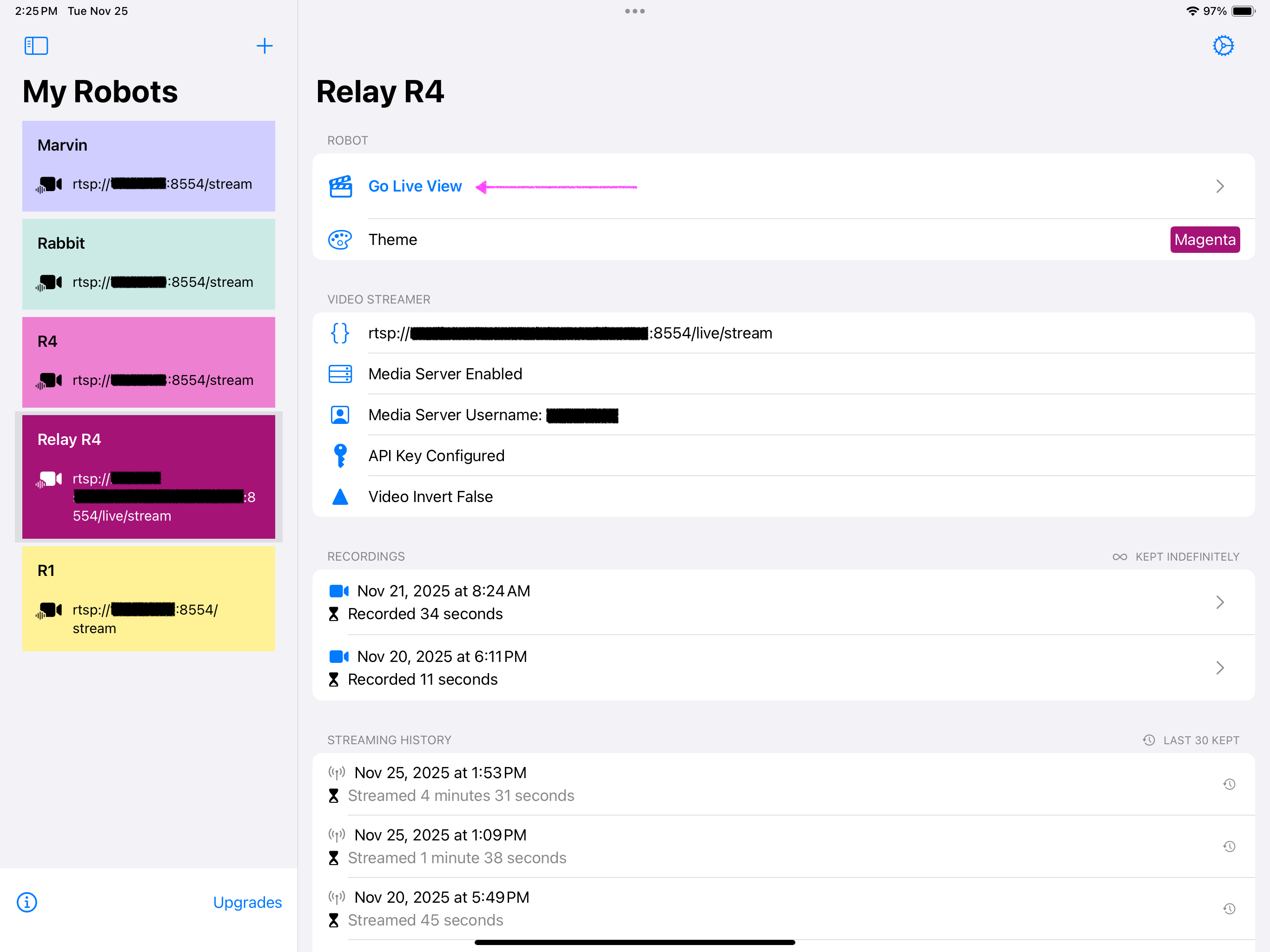
Last but not least, in the Droid Vision app, I configure the media server API key and tap “Go Live View” to start the streaming request on the robot. Closing the streaming view stops the video streaming from the robot.
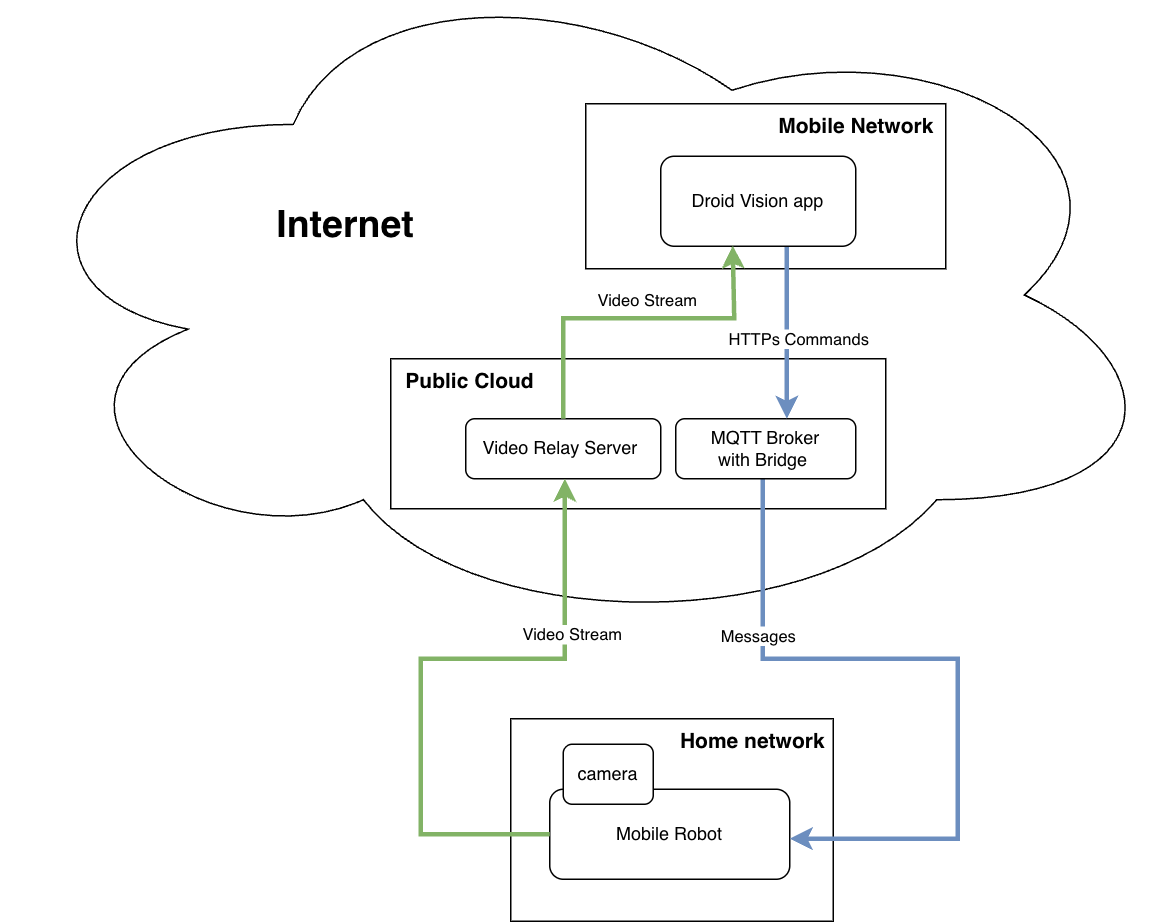
All in One Picture
Putting video relay and on-demand streaming together:
Cheers!